
Dork Industry Universal Developer Bridge (MCP)
By Dork Industry · WordPress plugin · Version 1.2.0
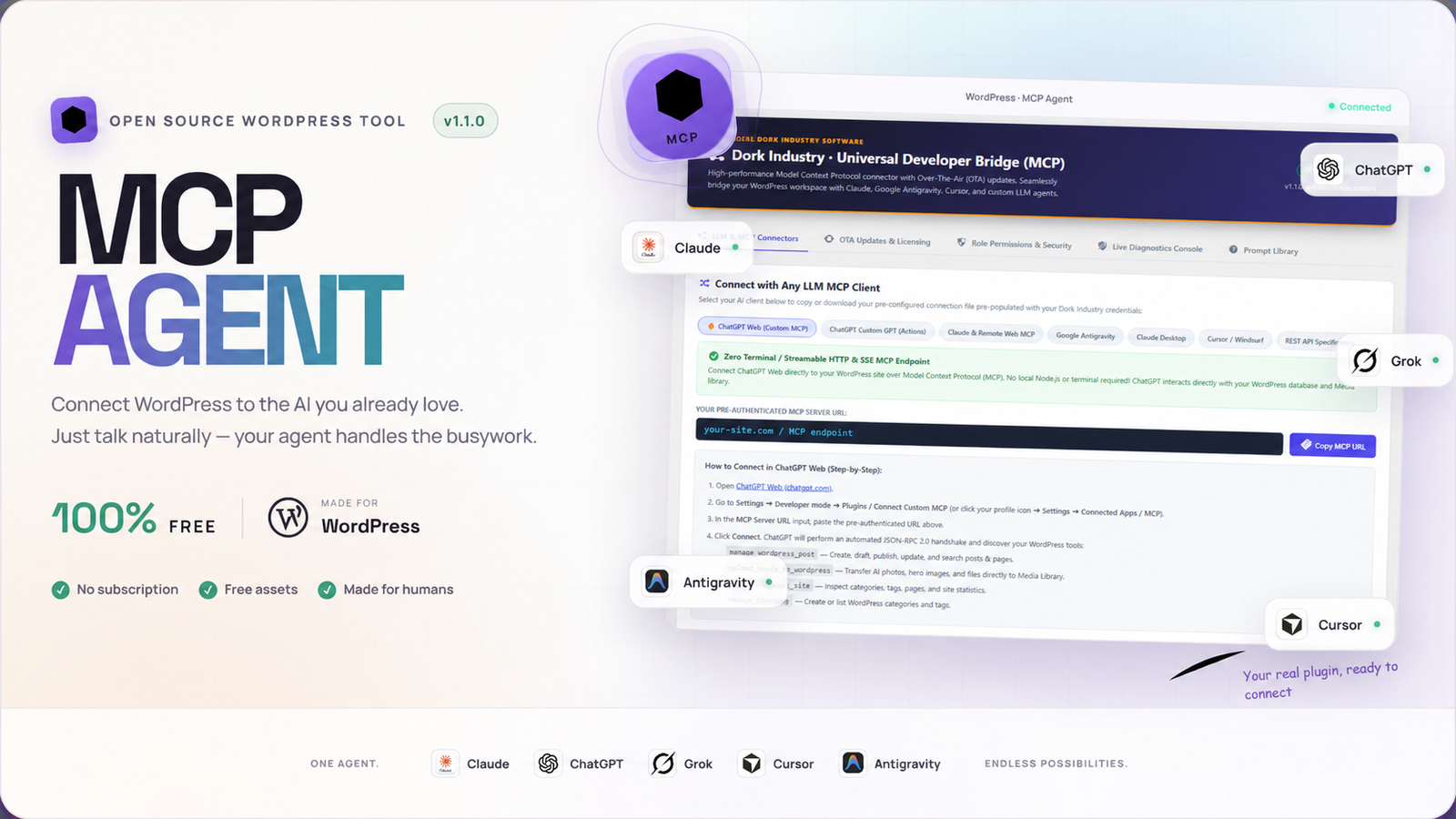
Dork Industry Universal Developer Bridge (MCP) — WordPress Plugin
0.00$
Updates & versions
- v1.2.0 ·
Version 1.2.0 released.
- v1.1.0 ·
Installation guide documents supported MCP clients, content tools, media transfer and connection checks.
Connect your WordPress site to the AI tools you already use
Universal Developer Bridge lets compatible MCP clients interact with your WordPress site through a prompt. Connect ChatGPT, Claude Desktop, Cursor, or another supported client, then use the tools made available by your site to manage content and media. Actions require the site’s configured permissions and a valid connection.
What the bridge can do
- Posts and pages: create drafts, edit, publish, find and organize content with categories, tags, slugs and featured images.
- Media library: bring images or other supported assets into WordPress and set titles, alt text and captions.
- Site structure: inspect pages, categories, tags and site statistics to inform content workflows.
- Taxonomy: list and create categories or tags through supported tools.
- Workspace inspection: inspect permitted WordPress directories within configured boundaries.
- Connection health: check the server connection and available capabilities before running tasks.
Compatible clients and setup
The v1.1.0 guide covers ChatGPT Web, Claude Desktop, Cursor and Google Antigravity. Setup differs by client: choose the connector method described in the guide, install the WordPress plugin, configure permissions, and connect using the credentials generated on your own site. Never publish your site’s connection token or a pre-authenticated URL.
Requirements
WordPress 6.0 or later, PHP 7.4 or later, HTTPS, and the WordPress REST API. Recommended: WordPress 6.4+ and PHP 8.1–8.3. Check that your AI client supports the relevant MCP transport before connecting.
Updates & versions
v1.2.0 — Released
Version 1.2.0 released.
v1.1.0
Installation guide documents supported MCP clients, content tools, media transfer and connection checks.
Version and availability
Version 1.2.0 was released on 30 September 2026. The existing v1.1.0 setup guide remains available below. The downloadable plugin package will be provided here once the release ZIP has been attached and verified. This product is free; no subscription or purchase is required to view this page.
Need installation help? Contact support@dorkindustry.com.
Set up the Universal Developer Bridge
Follow this short guide to install the plugin, verify your connection and start using supported WordPress tools. The download button above requires a Dork Industry account; the plugin archive is being prepared and will be linked when the package is available.
- Check requirements. Use WordPress 6.0 or later, PHP 7.4 or later, HTTPS and the WordPress REST API. Back up your site before installing any new plugin.
- Install the ZIP. In WordPress, open Plugins → Add New → Upload Plugin, select
universal-dev-bridge.zip, choose Install Now and Activate. Obtain the file from your account once it appears in Downloads. - Review permissions. Open Dork Bridge MCP in WordPress admin. Restrict capabilities to the actions your AI client needs. Use the Role Permissions & Security panel to view the connection details generated for your site.
- Connect an MCP client. In ChatGPT, Claude Desktop, Cursor or another compatible client, add your WordPress site’s own MCP endpoint using the method supported by that client. Enter your site’s credential only in that client’s private connection settings. Never share the token in a public screenshot or URL.
- Test before editing. Ask the client to check connection status and list available tools. Then try a small draft or read-only site summary. Review permissions and output before publishing or changing live content.
What can you do with it?
Create and edit supported posts and pages, organize categories and tags, inspect site structure, upload supported media and check connection health. Available actions depend on your WordPress role, configured permissions and the MCP client’s support.
Help and troubleshooting
If connection fails, confirm HTTPS and REST API access, verify the endpoint and client transport, inspect the site’s security plugin rules, and check the plugin’s diagnostics. If a credential was exposed, rotate it in Role Permissions & Security and update each client. Need help? Email Dork Industry support.
Need a WordPress server?
Hostinger offers WordPress hosting for new sites. Compare its current plan and renewal terms before purchasing. Hosting is optional if you already run WordPress on a compatible server.
Explore Hostinger hosting →Affiliate link: Dork Industry may receive a commission if you purchase through this link.

Only logged in customers who have purchased this product may leave a review.
Product comments & queries
Buyers can ask questions about this product here. Dork Industry can reply in the same thread.
No product queries yet.
Sign in to your buyer account to submit a query.
Updates & versions
- v1.2.0
Version 1.2.0 released.
- v1.1.0
Installation guide documents supported MCP clients, content tools, media transfer and connection checks.
Reviews
There are no reviews yet.