
Elementor editor stuck loading after plugin update? This usually means the editor request is failing before its controls can initialise. The public website may still look normal, but marketing and operations teams cannot change landing pages, offers or forms. Preserve the browser and server evidence, reproduce the problem on staging and repair the smallest responsible component. Dork Industry can diagnose the incident, implement a controlled WordPress repair or provide a developer for ongoing delivery.
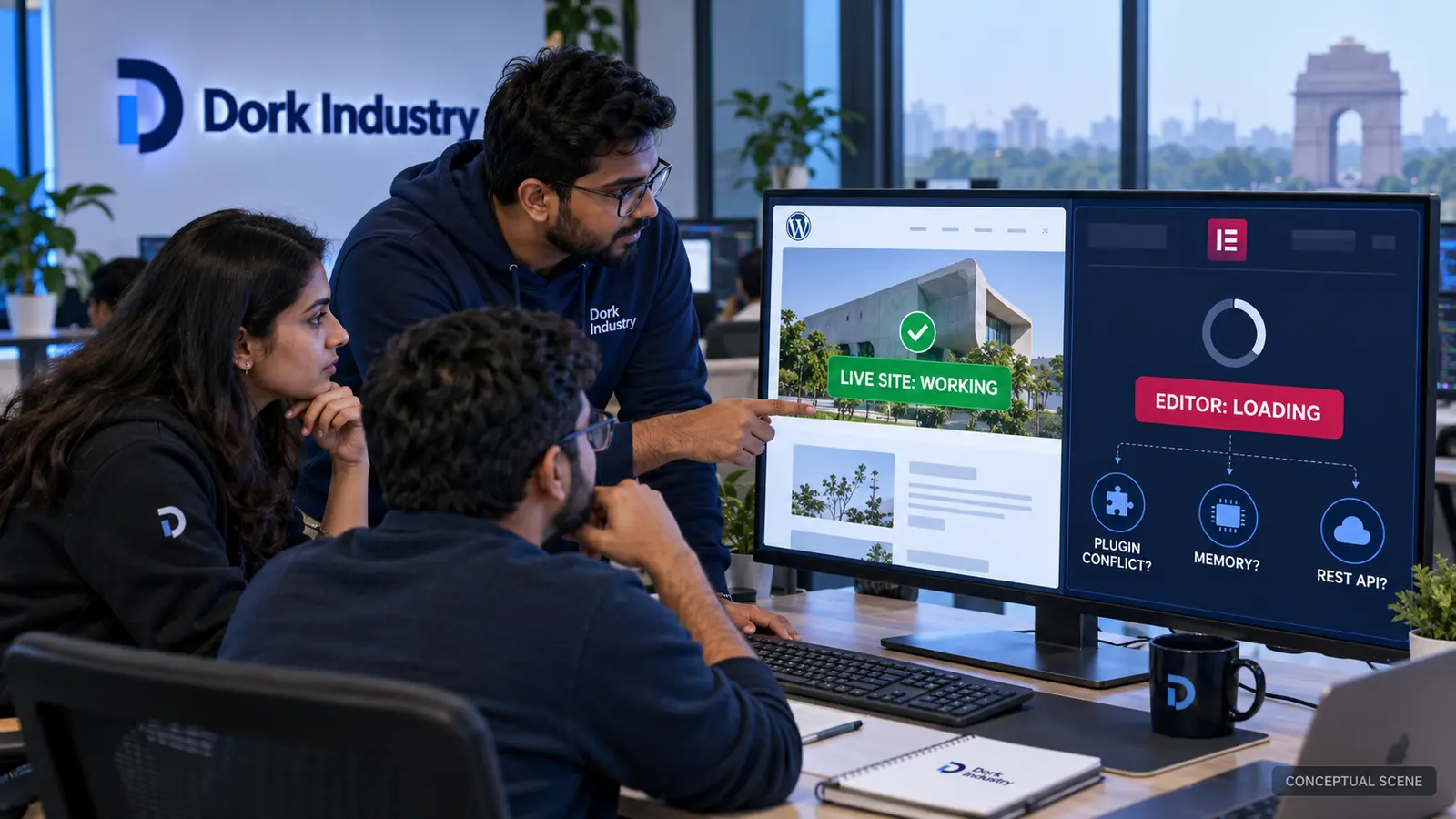
Elementor editor stuck loading after plugin update: why does it happen?
The update may introduce a JavaScript error, an Elementor/Elementor Pro version mismatch, a conflict with an addon or theme, exhausted PHP memory, or a blocked REST API request. The editor loads more application code than a public page, so “the website is live” does not prove the editing workflow is healthy. According to Elementor’s widget panel troubleshooting guidance, plugin conflicts, server configuration and resource limits are among the areas to investigate.
The commercial risk is delayed work: a campaign cannot launch, a price or compliance message remains outdated, or a form change misses its release window. Define the incident around the blocked publishing workflow, not only uptime.
What evidence should you capture first?
- Record the change: plugin name, old/new version, update time and who approved it.
- Reproduce one page: note whether existing pages, new pages, templates or all editors fail.
- Save browser evidence: console errors, failed Network requests and HTTP status codes.
- Save server evidence: sanitized PHP error log, memory limit and Elementor System Info.
- Protect rollback: confirm files, database and a staging clone before changing dependencies.
Do not publish raw logs or screenshots containing paths, tokens, personal data or customer information. A useful repair brief contains the failing URL, user role, browser, exact time, recent changes and the smallest repeatable action.
Which failures commonly block the Elementor editor?
| Observed evidence | Likely failure | Professional response |
|---|---|---|
| Console names an addon script | JavaScript conflict or dependency change | Reproduce on staging, update or patch the component, then retest widgets |
| REST request returns 401/403 | Security rule, cache, proxy or permission is blocking the editor | Trace the request and adjust the responsible rule without weakening site-wide controls |
| REST request returns 500 | PHP fatal error or resource exhaustion | Use the matching server trace to repair code or right-size resources |
| Elementor and Pro versions differ | Version incompatibility | Align supported releases under backup and staging control |
| Only one template fails | Corrupt content, custom widget or template-specific conflict | Clone the page and isolate the failing section or widget |
| Editor works only in Safe Mode | Theme or plugin environment conflict | Use controlled conflict isolation to identify the component |
How should developers isolate the cause?
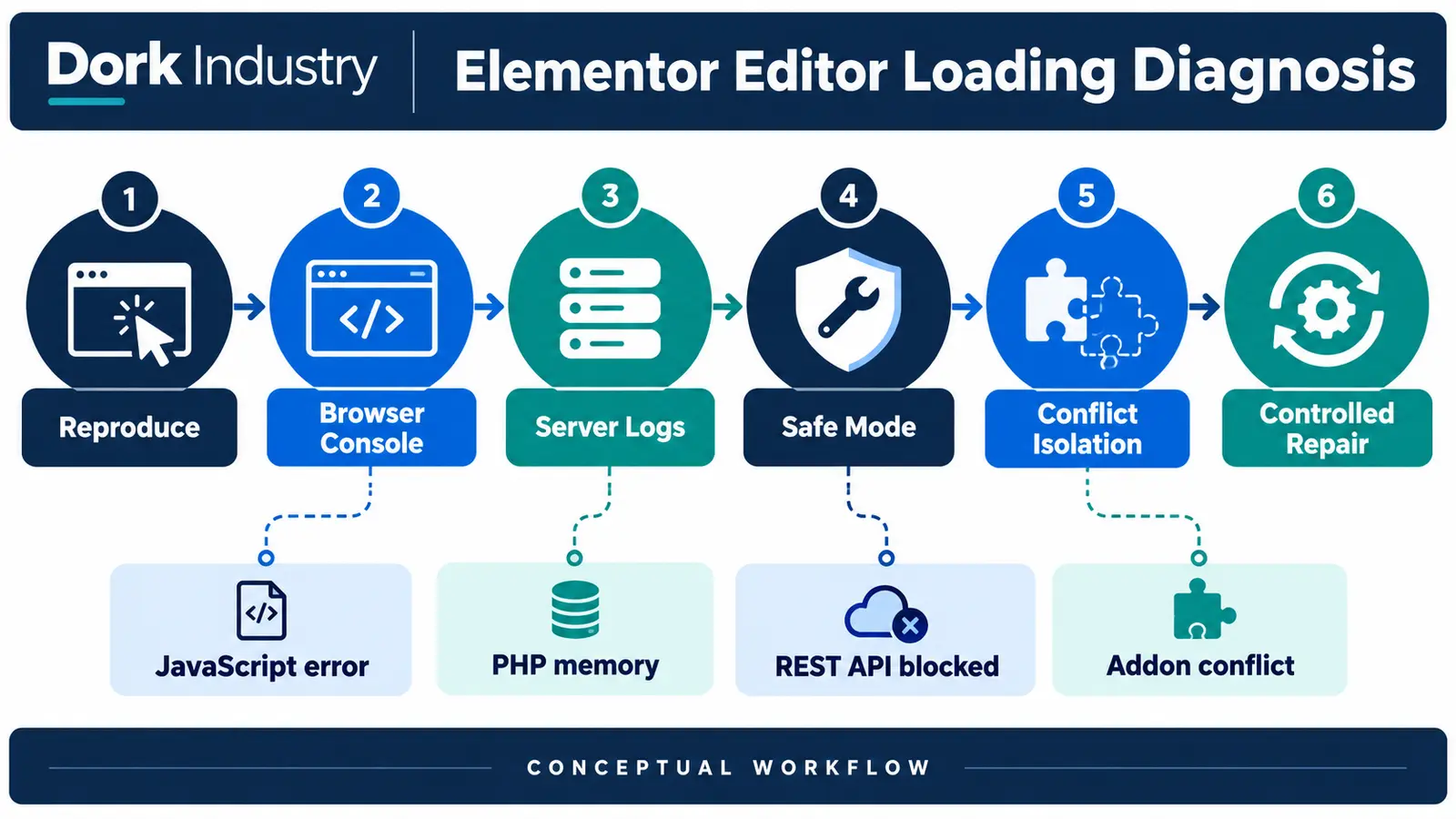
Start with the failing request, not a random plugin list. Match a browser error to the Network response and server timestamp. Reproduce it on staging with the same theme, versions, PHP runtime, cache and proxy behaviour. Then change one variable at a time: addon, theme, custom snippet, caching layer or resource limit. Retain the evidence for every pass.
Do not deactivate every production plugin blindly. That can disable checkout, forms, tracking or integrations and still leave no reliable root cause. If the incident follows a wider server change, compare it with our guide to a WordPress website broken after a PHP update. If forms are the affected journey, use the separate contact-form delivery diagnostic.
What should Elementor Safe Mode prove?
Safe Mode is a diagnostic comparison, not a permanent operating state. According to Elementor’s Safe Mode troubleshooting guidance, if Safe Mode does not resolve the issue, server configuration, memory and other environmental factors still need investigation. If it does work, isolate the conflicting theme or plugin on staging and repair that dependency.
The result should answer a specific question: does the editor initialise when third-party theme and plugin code is excluded? Record the page, account, browser and result. Never present Safe Mode itself as the final fix.
How should the Elementor repair be acceptance-tested?
A spinner disappearing is not enough. The repaired workflow must load, edit, save and render consistently. Copy this matrix into the incident ticket and attach evidence for each row.
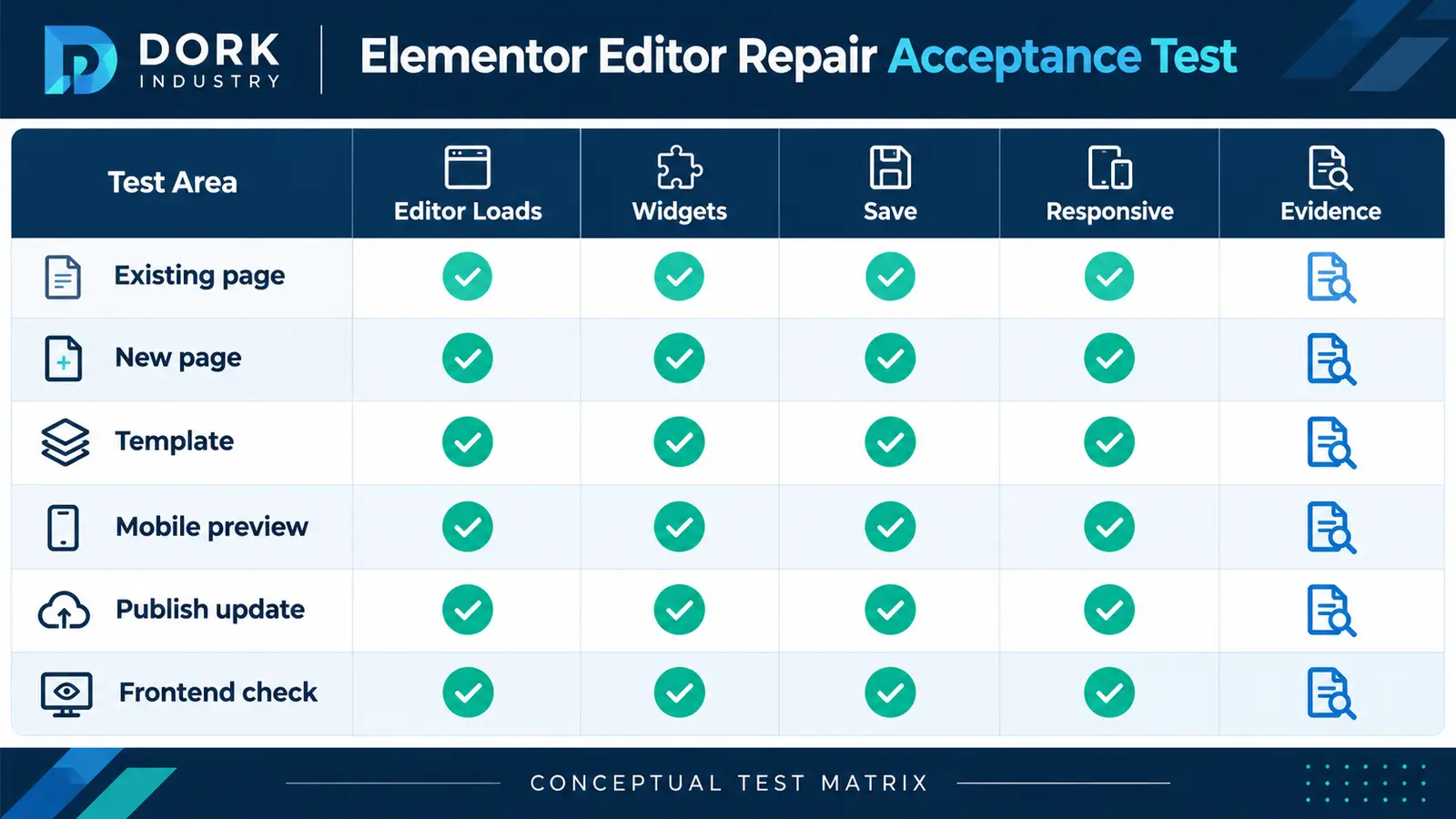
| Test | Expected result | Evidence |
|---|---|---|
| Existing page | Editor loads all widgets and controls | Console and screenshot |
| New page | Core and approved addon widgets insert correctly | Test-page URL |
| Template | Header/footer template opens and saves | Template revision |
| Responsive preview | Desktop, tablet and mobile controls respond | Viewport notes |
| Publish/update | One save creates one valid revision without error | Revision and server log |
| Frontend | Changed page renders without layout regression | Before/after checks |
When should you hire a WordPress developer?
Bring in a developer when the public site and editor behave differently, REST requests fail, custom widgets or theme code are involved, the issue returns after updates, or the stack includes multiple addons, languages, commerce or integrations. The deliverable should include root-cause evidence, the smallest maintainable change, regression tests, release notes and rollback instructions.
| Engagement | Best fit | Expected output |
|---|---|---|
| Fixed repair | One reproducible incident | Diagnosis, repair and controlled release |
| Compatibility hardening | Repeated update conflicts | Dependency review, staging process and regression suite |
| Hire a developer | Your team needs ongoing WordPress capacity | Defined resource, backlog and delivery ownership |
| Website refactor | Fragile addons block routine change | Phased architecture and migration plan |
Dork Industry’s web development team can handle a scoped repair or a maintainable rebuild. For temporary delivery capacity, review staff augmentation. Where editing problems expose deeper workflow or integration debt, our custom software development service can assess the wider system.
Restore the publishing workflow under change control
Send Dork Industry the affected URL, update timeline, sanitized console/server errors, System Info and staging status. We can scope a repair, an update-hardening project or a developer resource.
Frequently asked questions
Why does the live page work while Elementor keeps loading?
The editor loads additional scripts, REST requests and controls that the cached public page may not use. A healthy frontend therefore does not prove the editing application is healthy.
Should I roll back the plugin immediately?
A controlled rollback can restore editing when the previous version is known-good and a backup exists. Preserve logs first, test on staging and still identify the incompatibility before the next update.
Will increasing PHP memory always fix Elementor?
No. It helps only when evidence shows resource exhaustion. JavaScript conflicts, blocked REST requests, version mismatches and broken custom widgets require different repairs.
Can I use Safe Mode as the permanent solution?
No. Safe Mode is a diagnostic environment. Use its result to isolate the conflicting theme or plugin, then repair and acceptance-test the normal editor.
What should I send the developer?
Send the affected URLs, plugin update details, user role, browser, sanitized console and server errors, Elementor System Info, backup status and staging access.
How can we prevent the same issue after future updates?
Maintain a dependency inventory, test updates on a production-like staging clone, run the editor acceptance matrix and release with a documented rollback path.
Stuck with this issue?
Send us the error and the setup — we diagnose the cause, fix it, and show you how to prevent it from coming back.
[…] Theme code rarely controls the core hosted payment-method list, but custom carts, checkout extensions, payment customizations and apps can influence the journey or eligibility. If the cart itself is broken, use the Shopify Add to Cart repair guide. If a promotion changes the outcome, compare the Shopify discount diagnosis. […]