Direct answer: When office Wi-Fi keeps disconnecting, first determine whether the failure affects one device or many, one room or the whole site, and Wi-Fi only or the wired internet connection too. That pattern separates device faults, wireless coverage, access-point capacity, internal network problems and provider outages before money is spent on the wrong fix.

“The Wi-Fi is slow” can describe several different failures: the device may lose its wireless link, the link may remain connected while internet access fails, one cloud application may be slow, or an access point may be overloaded only during busy periods. A useful investigation records symptoms while the problem is happening instead of relying on a restart that temporarily hides it.
Office Wi-Fi keeps disconnecting: what should you check first?
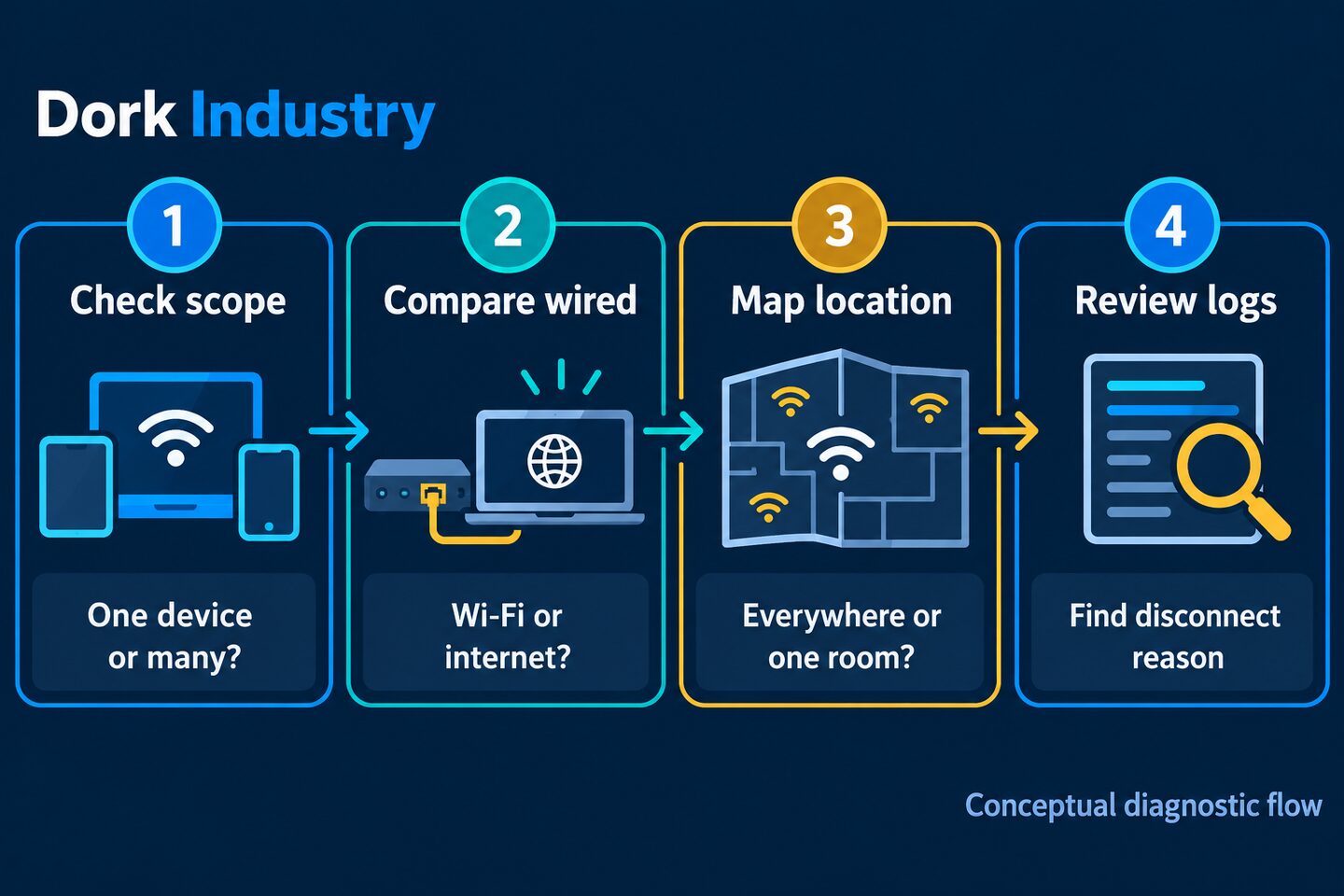
Ask four questions in order: How many devices fail? Does a wired device fail at the same time? Does the problem follow a location? What do the device, access point, switch, firewall and provider logs show at that timestamp? These answers identify the failing layer more reliably than a generic speed test.
| Observed pattern | Likely layer to inspect first | Useful comparison |
|---|---|---|
| One laptop disconnects everywhere | Device, driver, power policy or saved profile | Same user on another device |
| Several devices fail in one room | Coverage, interference, placement or cabling to that access point | Same devices near another access point |
| Wi-Fi and wired users lose internet | Firewall, switch uplink, DNS or internet circuit | Gateway reachability versus public service |
| Only video calls fail at peak time | Capacity, airtime, congestion or traffic policy | Busy period versus quiet period |
| Connection drops while walking | Roaming design and client behaviour | Stationary test beside each access point |
Ten practical checks when office Wi-Fi keeps disconnecting
How do you record the exact failure?
Ask the user whether the Wi-Fi icon disconnects, shows “connected, no internet,” or stays connected while one application stops responding. Record the time, device, desk or room, application and error. A screenshot and timestamp are more actionable than “internet was bad in the afternoon.”
How do you separate one device from many?
Test another managed device in the same location and the affected device in another location. If only one device fails everywhere, inspect its wireless driver, operating-system updates, power-saving policy, VPN, security software and saved network profile before changing the office infrastructure.
How do you compare Wi-Fi with a wired connection?
During the incident, connect a test laptop by Ethernet on the same business network. If wired service is stable while Wi-Fi drops, focus on radio coverage, access points, roaming and wireless authentication. If both fail, investigate the gateway, switches, firewall, DNS and internet service.
How do you test the gateway before the internet?
A device can remain connected to an access point but lose the path beyond it. Test whether it can reach the local gateway, then a known public IP address, then a domain name. This separates local connectivity, upstream internet and DNS resolution. Use approved diagnostic methods and avoid changing production settings during a live test.
How do you map the location pattern?
Walk the normal user route and mark where the issue starts and ends. Note walls, metal racks, glass partitions, lifts, machinery and doors between the user and access point. A conference room that works when empty may fail when occupied because capacity and radio conditions changed—not because the provider slowed down.
How do you check channels and interference?
Nearby networks and non-Wi-Fi devices can compete for radio airtime. Review the channel plan rather than forcing every access point to maximum power. Access points placed too closely or configured on overlapping channels can create a busy network that looks strong on the signal icon but performs poorly.
How do you check access-point capacity?
Compare failures with connected-client count, airtime use and busy hours. A consumer router may be acceptable for a small room but unsuitable for a busy office, training room or warehouse where many phones, scanners, laptops and cameras connect at once. Capacity is about simultaneous use, not only advertised speed.
How do you inspect cabling, switch ports and power?
A perfectly placed access point still fails if its Ethernet cable, switch port, Power over Ethernet supply or uplink is unstable. Check port errors, renegotiation, power budgets and link events. If one access point repeatedly restarts, do not assume the radio is the cause.
How do you review DHCP, DNS, firewall and authentication?
Users may associate with Wi-Fi but fail to receive or renew a valid IP address. Look for exhausted address pools, duplicate addresses, slow authentication, DNS timeouts, firewall session limits and captive-portal problems. Compare employee and guest networks because a fault limited to one segment changes the investigation.
How do you correlate logs at the failure time?
Correlate the client device with access-point, controller, switch, firewall and provider events. On supported Windows systems, the built-in wireless network report can summarize recent Wi-Fi sessions and disconnect information. See Microsoft’s wireless network report guidance. Logs are useful only when clocks are aligned and timestamps are recorded.
Why does signal strength alone not prove good Wi-Fi?
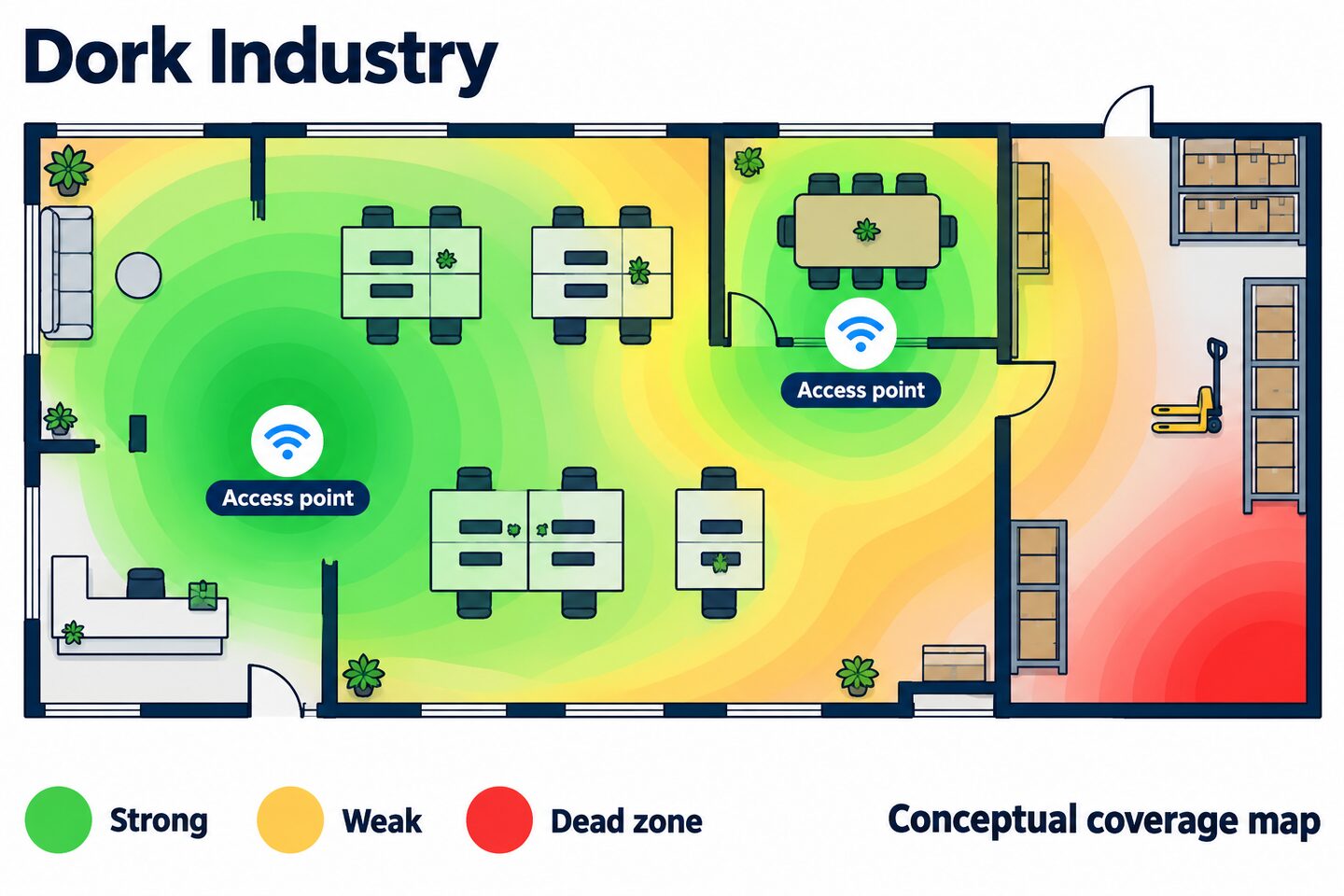
A phone or laptop can display a strong signal while the network is congested, misconfigured or unable to reach the internet. A professional assessment considers both coverage and capacity:
- Coverage: can the client hear the access point, and can the access point hear the client?
- Capacity: can the shared channel handle the number and type of active users?
- Quality: are retries, interference and latency low enough for voice, video and cloud applications?
- Roaming: can a moving client transition without holding onto a distant access point?
- Backhaul: are cabling, switches, power and internet paths stable behind the radio?
A predictive floor-plan design is useful before installation, but a live site survey validates what the actual walls, furniture, racks, people and neighbouring networks do to the design. Do not treat the conceptual heatmap above as a measurement of any real Dork Industry customer site.
According to Cisco, high-density rooms require capacity planning alongside coverage. Its WLAN site-survey guidelines explain why a coverage map alone is insufficient. Cisco also documents how building materials and nearby equipment affect radio-frequency communication. Use these principles to choose tests; they are not measurements of your office.
Which measurements matter for voice calls?
According to Cisco, traditional high-quality voice planning targets include one-way mouth-to-ear delay no greater than 150 ms, jitter below 30 ms and packet loss below 1 percent. These are Cisco voice design guidelines, not a universal pass/fail threshold for every application. Compare your actual calling platform requirements and measure end-to-end behaviour during a busy period. A speed test alone does not measure these factors.
The wireless network report shows recent Wi-Fi sessions and disconnect information on supported Windows devices. Use the Microsoft report alongside access-point and switch logs to locate the failure. Neither these design targets nor the illustrative worksheet constitute measured results from a Dork Industry client.
Use this Wi-Fi fault evidence worksheet
This original worksheet turns complaints into comparable observations. Collect several incidents before buying equipment unless the failure is already clearly identified.
| Field | Example entry | Why it matters |
|---|---|---|
| Date and time | 14:32–14:38 | Correlates logs and peak use |
| Location | Meeting room beside stock area | Reveals coverage pattern |
| Scope | Four laptops; phones unaffected | Separates device class and infrastructure |
| Visible symptom | Connected, no internet | Separates association from upstream path |
| Wired comparison | Stable during incident | Narrows fault to wireless path |
| Application | Video call and cloud CRM | Shows latency-sensitive impact |
| Evidence | Screenshot, device ID and log timestamp | Makes the event reproducible |
| Temporary action | Moved to reception access point | Tests the location hypothesis |
Hypothetical worked example: At 14:32, four laptops in a Naraina meeting room show “connected, no internet,” while a wired test laptop stays online. The same wireless laptops work beside reception. Controller logs show repeated reassociation around the meeting-room access point, and the switch shows that access point restarting. The evidence points to the local access-point path or power—not the internet provider. This is an illustrative diagnostic example, not a customer result.
What changes in Delhi offices and industrial areas?
Delhi workspaces vary from multi-floor offices and clinics to shopfronts, warehouses and mixed office-production buildings. A layout in Okhla or Naraina may include partitions, loading areas and equipment that affect radio coverage differently from an open office. Warehouses in Wazirpur, Patparganj, Narela or Bawana may need coverage for scanners and mobile devices across racks, yards and dispatch points rather than only at desks.
That local context should change the test plan, not merely the page keywords. Measure the actual routes people take, the devices they use and the peak operational period. Confirm where wired connections are practical, how guest access is separated and which workflows must continue during an ISP outage.
Match the fix to the diagnosed fault
| Verified cause | Appropriate response | Avoid |
|---|---|---|
| Single device or driver | Update, repair or replace the client configuration | Adding access points |
| Coverage gap | Survey, reposition or add correctly planned access points | Unplanned range extenders |
| Channel congestion | Redesign channel and power plan | Maximum power everywhere |
| Access-point overload | Capacity redesign and client distribution | Buying only a faster internet plan |
| Switch, cable or PoE fault | Repair physical link or power delivery | Replacing wireless clients |
| ISP or firewall outage | Escalate circuit or gateway path; assess resilience | Changing SSIDs |
Dork Industry’s Network Connectivity service connects network support with infrastructure monitoring and managed IT assistance. For environments where the problem crosses devices, switches, security controls and cloud access, Dork’s managed services provide a broader operational route than treating each disconnect as a separate ticket.
What should a Wi-Fi assessment or support proposal include?
- A floor plan and the business areas that must be covered.
- Current access points, switches, cabling, internet circuits and ownership.
- User, device and peak-concurrency assumptions.
- Coverage, capacity, roaming and application requirements.
- Employee, guest and device-network separation.
- Measured findings, not only a product list.
- Acceptance tests for normal and peak periods.
- Monitoring, documentation, escalation and change ownership after installation.
Measure network reliability and commercial performance separately
| Layer | Useful measures | Question answered |
|---|---|---|
| Network reliability | Disconnect events, affected locations, retry rate, incident duration | Is the user experience improving? |
| Support operations | Repeat tickets, diagnosis time, unresolved causes | Is the issue being fixed or hidden? |
| Search/AEO | Relevant queries, impressions, clicks, extracted answers | Does this guide reach the problem? |
| Observed AI visibility | Brand mentions, cited URLs, referral sessions | Is Dork surfaced for the topic? |
| Commercial | CTA clicks, consultations, qualified leads, projects | Does helpful content create business? |
Frequently asked questions
Why does office Wi-Fi keep disconnecting?
Common causes include a device problem, weak coverage, interference, overloaded access points, roaming behaviour, unstable cabling or power, DHCP or authentication issues, firewall faults and internet-provider outages. The symptom pattern determines which layer to test first.
Will faster internet fix Wi-Fi disconnections?
Only if the verified bottleneck is the internet circuit. Faster bandwidth does not repair weak coverage, interference, poor access-point placement, unstable switch ports, address-pool exhaustion or a failing client device.
How can we tell whether the problem is Wi-Fi or the ISP?
Compare a wired connection during the same incident and test the local gateway before testing public internet access and DNS. If wired users also fail, investigate the gateway, switches, firewall, DNS and provider path.
Should we install more access points?
Only after measuring coverage and capacity. Too many poorly planned access points can increase interference. A site survey and channel plan should guide placement, power and configuration.
What is a Wi-Fi site survey?
It is an assessment of the physical space, radio environment, access-point locations, coverage, capacity and roaming needs. A post-installation survey verifies that the deployed network meets the intended user and application requirements.
Why does Wi-Fi fail only in the meeting room?
The room may have weaker coverage, more radio-blocking materials or a sudden concentration of active devices. Test it both empty and occupied, compare other rooms and review the nearest access point and its wired uplink.
Should employee and guest Wi-Fi be separate?
Usually yes. Separation can support different access, security and traffic policies. The exact design should reflect business systems, unmanaged devices, compliance needs and how guests reach the internet.
Can Dork Industry troubleshoot office Wi-Fi in Delhi?
Dork Industry provides Network Connectivity, network support and managed IT services. A consultation can scope the affected locations, devices, infrastructure, evidence and acceptance tests needed for a practical diagnosis.
Next step: Collect three incidents with the worksheet before the assessment. If all three point to the same device, room, access point or busy period, the investigation begins with evidence instead of guesswork.